
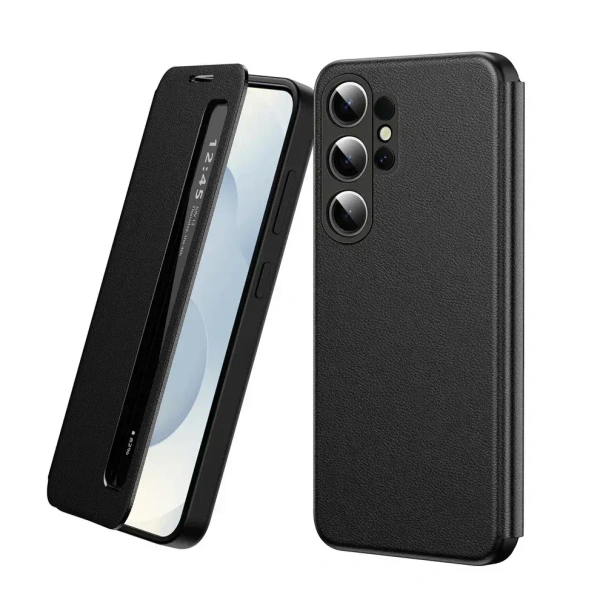
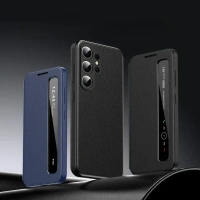
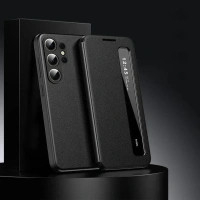
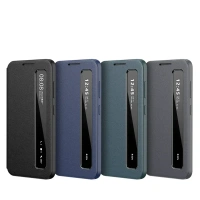
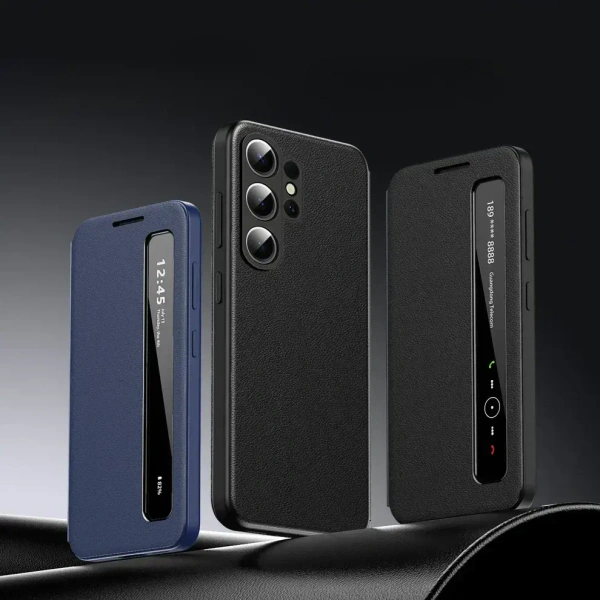
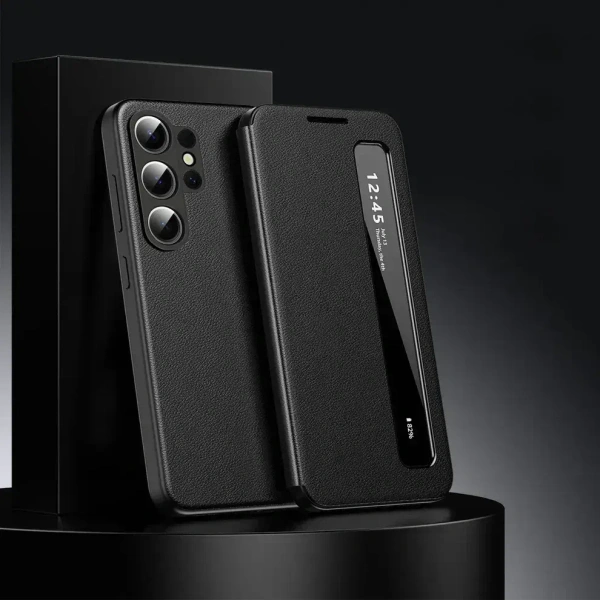
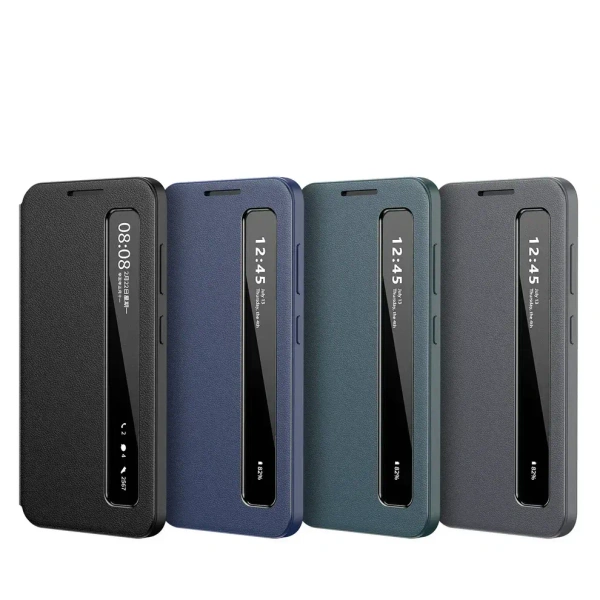
Samsung Galaxy Ultra Smart View Window Case with IC Chip – PU Leather Case Flip Cover
₹ 900 / Piece
₹ 1,899
53%


- COD Available
- Premium Quality
- Satisfaction Guaranteed
- Secure Checkout
Delivery Options
Get delivery at your doorstep
Out of Stock
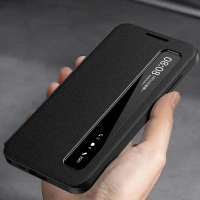
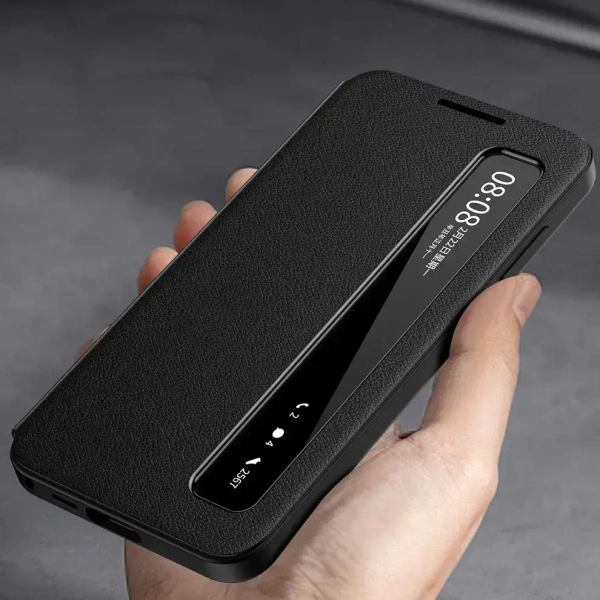
Designed for smart convenience and complete protection, the Intelligent View Side Window Flip Case combines modern functionality with a sleek, professional look. The integrated side window display allows you to check time, notifications, calls, and battery status without opening the cover, ensuring effortless access at a glance.
Key Features:
- Material: Leather.
- Smart Side Window Display – View time, calls, notifications, and battery without flipping the cover.
- No-Flip Call Answering – Take calls directly through the smart window.
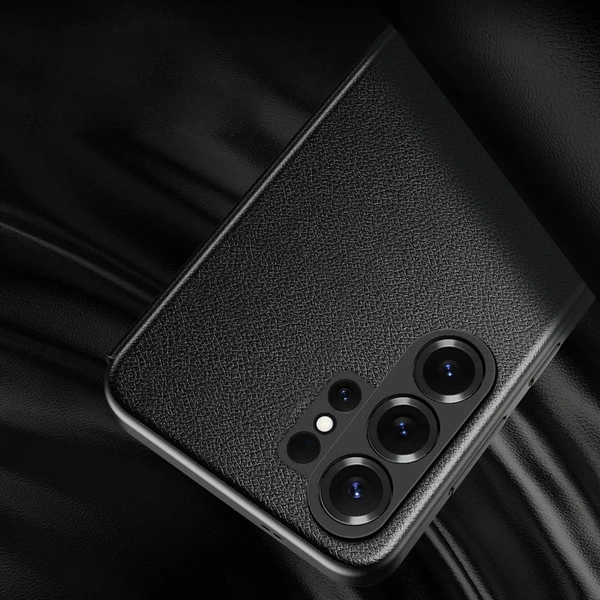
- Full-Cover Protection – Guards front, back, edges, and corners.
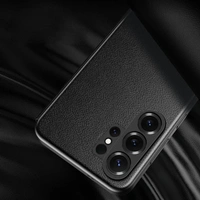
- Anti-Fingerprint Matte Finish – Keeps the case clean and smudge-free.
- Slim & Lightweight Design – Premium protection without added bulk.
- Precision Cutouts & Buttons – Smooth access to ports, speakers, and controls.
- Durable Magnetic Closure – Secure fit while remaining easy to open.
How to Download the Smart Window App:
- Open your phone’s camera.
- Scan the QR code shown on the image (labeled Smart Side Window App).
- You will be redirected to the app download page (Android App Store or provided link).
- Install the app and allow required permissions (notifications, display access).
- After downloading the Smart Window app, open the app on your phone.
- On the main screen, tap twice on the activation area.
- Tap once, then tap again.
- The app will display “App Not Activated.”
- Below this message, you will see the Activation Point (Which is mentioned behind the case on the left side corner).
- Place your phone firmly against the activation point on the case.
- The status will change to “Activated.”
- Once activated, remove the phone from the case.
- Go back to the Usage Guidelines section in the app.
- Tap on Settings, then navigate to NFC.
- Tap on NFC Settings again.
- The app will now display your NFC address, confirming successful setup.
Reviews and Ratings


No Customer Reviews
Share your thoughts with other customers
